

Create an Objective
Before you create an Objective:- Created an Agent
- Created at least one Agent Variation for it
Cadenya CLI
Create an Objective with an External ID
Use an External ID to prevent duplicate Objectives for a workflow or record in your application. You can also retrieve the Objective by this value, which makes scripts straightforward:Cadenya IDs use a prefixed ULID. If an ID does not begin with the expected prefix, such as
obj_, Cadenya treats it as your externalId value.Passing in custom data
Objectives can store unstructured data for:- System prompt data
- First user message data
- The user’s name and email
- Recent purchases
- Custom object details for data classification tasks
Run client tools
Define client tools inclientTools.definitions when you create an Objective. Your application executes the calls and returns their results. You can pass the same wrapper to CreateAndStreamObjective (POST /v1/workspaces/{workspaceId}/objectives:stream). The definitions stay fixed for the Objective, including after Continue.
This example creates an Objective, listens for toolCalled, supplies content with SetToolCallContent, and prints the agent’s reply through completion. It uses a fixed weather result so you can try the flow without a weather service.
Install @cadenya/cadenya 1.9.0 or later and a TypeScript runner:
CADENYA_API_KEY, CADENYA_WORKSPACE_ID, and CADENYA_AGENT_ID in your environment. Use an Agent with one variation, a tool-calling model, and no required prompt data or assigned tools. Save this as client-tools.mts and run npx tsx client-tools.mts:
client-tools.mts
toolCalled payload includes toolCallId, llmToolName, and arguments. Client tool arguments are always exposed, including in Widgets. The call waits for your setContent result for up to 1 hour; the agent then continues and emits toolResult and its next reply. You can handle the same calls through webhooks.
If you set requiresApproval: true, handle toolApprovalRequested with ApproveToolCall first. The toolCalled event arrives after approval.
Secrets
Objectives can store secrets for only the Agent loop that owns them. Use these secrets for:- Short-lived tokens that can access an API (for example, a JWT minted to act on behalf of a user)
- Other authorization credentials (like Cloudflare tunnels)
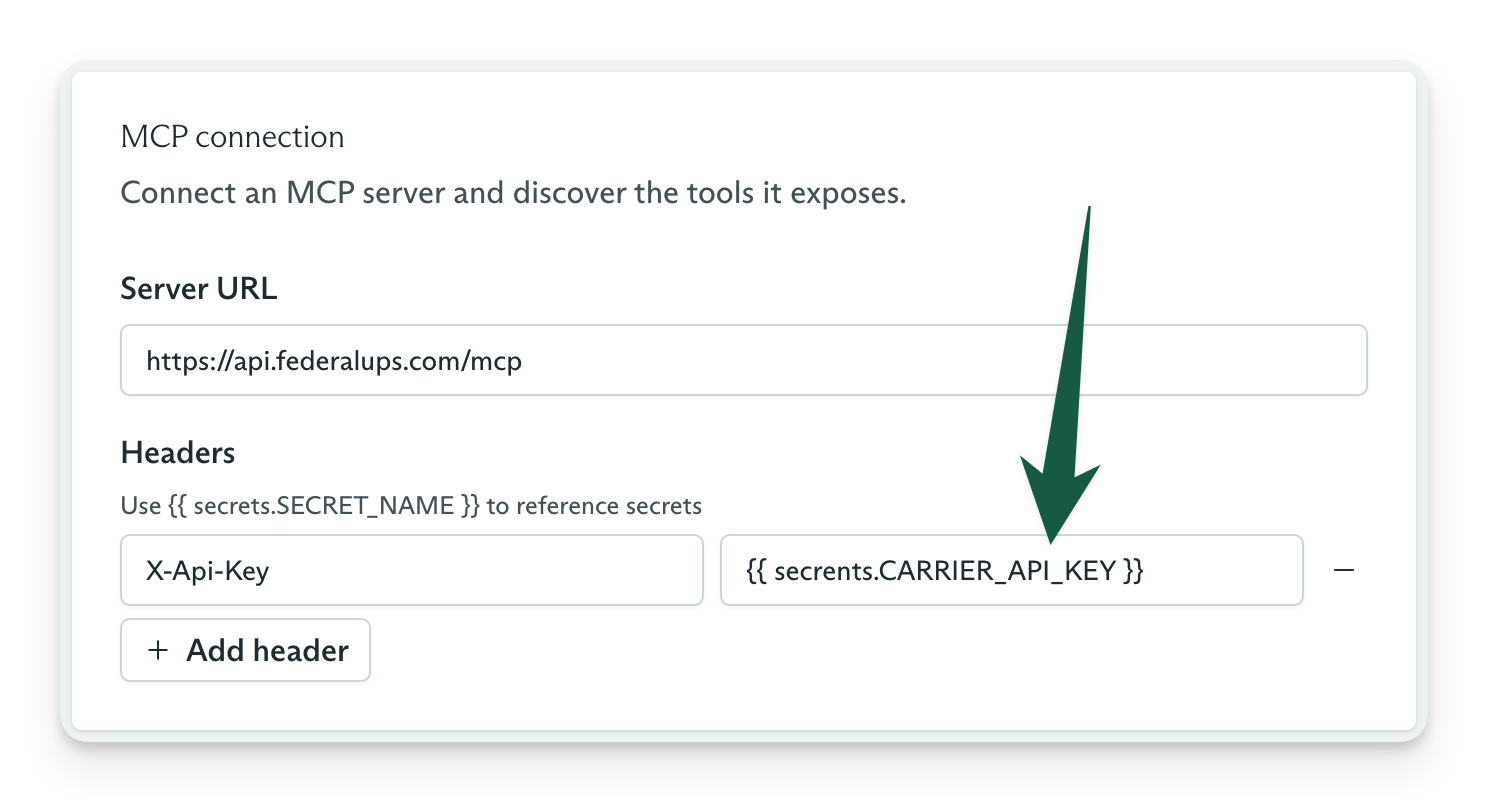
Referencing a secret in an MCP tool set
Tenants and subjects
Cadenya allows you to segment your Objective data by Tenants (account and workspaces) and even Subjects (users, keys, etc). This allows you to purge data in Cadenya for a tenant, or filter using the API with the IDs you supply.Tenants
To provide a tenant and subject when you create an Objective, pass an assertion for each one. These records do not need to exist in Cadenya first. Cadenya creates the record or updates it when the ID already exists.Subjects
Subjects are similar to tenants and are scoped to the supplied tenant. Subject assertions require a tenant assertion. This prevents free-floating subjects without a tenant. If your subjects do not have a natural tenant, use a generic tenant ID such as default.Variation selection
When you create an Objective with onlyagentId, Cadenya chooses an Agent Variation using the agent’s Variation Selection Mode. Random gives each variation equal odds. Weighted uses feedback to favor variations that score well.
Pass variationId when you need one known configuration, such as for a regression test or model comparison. The value overrides the agent’s selection mode for that Objective.
Cadenya selects the variation once when it creates the Objective. The Objective keeps that variation’s configuration snapshot even if you edit the variation later.
Objective feedback
Cadenya collects feedback on an Objective’s performance and outcome. Use the Feedback API to provide a score and optional comment. Feedback has the most impact when you set the Agent’s Variation Selection Mode toweighted. Cadenya uses Thompson sampling to favor variations that score well.
Scores range from -1 to 1 and can include decimals. If an Objective did a “meh but acceptable” job, you might give it a score of 0.5. If it got the result wrong, give it a score of -1 to scold it for what it did.
Objective events
Every Objective carries a durable event log of its agent loop. You can list stored events after a run or stream new events while the Objective works. Each event includes metadata, acontextWindowId, and one typed data payload. Work that takes measurable time also includes startedAt and duration.
Read stored events
List events in ascending order to replay the Objective from its first event:Stream new events
The stream uses server-sent events and stays open until the Objective reaches a terminal state or the connection closes:Event types
Usedata.type to choose the matching payload in data.
data.type | What the event records |
|---|---|
userMessage | A user message enters the Objective’s chat history. |
assistantMessage | The model returns assistant content or requests tool calls. |
reasoning | The model returns reasoning text or a provider-generated reasoning summary. This text does not return to the model. |
toolApprovalRequested | A tool call pauses and waits for approval. Use its toolCallId to approve or deny the call. |
toolApproved | A reviewer approves a waiting tool call. |
toolDenied | A reviewer denies a waiting tool call. The payload includes the reviewer’s memo. |
toolCalled | Cadenya executes a tool call and records its tool, configuration, and arguments. |
toolResult | A tool call completes and returns content. |
toolError | A tool call fails and returns an error message. |
memoryRead | The agent resolves a key against the Memory Cascade and loads an entry. A lookup that misses does not emit this event. |
contextWindowCompacted | Compaction creates a new Context Window. The payload names the strategies used and the number of messages compacted. |
subAgentSpawned | The parent Objective spawns a Sub-Objective and records its task, Agent, and Objective. |
subAgentUpdated | A Sub-Objective changes state. The payload includes its status and an optional message. |
notice | The runtime reports a non-terminal diagnostic, such as a Tool Set that failed to load. |
error | The Objective encounters an execution error. The payload includes an error type and message. |
cancelled | The Objective is cancelled and enters a terminal state. |
timedOut | The Objective reaches its inactivity limit and enters a terminal state without output. |
finalized | The Objective completes in a terminal state. The payload includes structured output when the Agent defines it. |
Continue an Objective
Objectives can also support conversations. When an Objective entersSTATE_WAITING, send a Continue message from your user to resume the Agent loop.
Retrieving structured output
If your Agent has Structured Output enabled, the Objective ends with a JSON object stored on it. Structured output works well when you use an Agent to classify data, write an email, or handle other small, discrete tasks that require the reasoning power of an LLM. Retrieve theoutput field from the Objective:
Approve or deny tools
If a tool requires approval, Cadenya parks the Agent loop until it receives approval or a denial with optional steering. Multiple tools can wait at the same time. Every Tool Call in Cadenya receives atoolcall_-prefixed ID that you use to record a decision. Pair webhooks or SSE with tool approvals to create real-time agentic experiences with Cadenya.
Lifecycle
Objectives in Cadenya can do a lot of work. An Objective moves through several lifecycle states, including four terminal states. Once it enters a terminal state, it is gone, deceased, donezo. It is done. Terminal states areSTATE_FINALIZED, STATE_FAILED, STATE_CANCELLED, and STATE_TIMED_OUT.