> ## Documentation Index
> Fetch the complete documentation index at: https://cadenya.com/docs/llms.txt
> Use this file to discover all available pages before exploring further.
# Tool Sets
> The basics of how Tool Sets work in Cadenya's Agent Runtime
Tool Sets collect tools that you can assign to an Agent Variation. They support four adapter types:
1. OpenAPI 3.0 or later
2. MCP
3. HTTP (endpoints you define)
4. Bare
You can also configure filters and approval requirements on a Tool Set. For example, an OpenAPI specification with hundreds of operations can exhaust your context window budget. Use filters to limit the tools available to your agent, then enable progressive discovery to load tools on demand.
Assign overlays to a Tool Set to control its context and reassign tool arguments when an agent uses a tool.
## Tool filtering and approvals
Giving your agent too many tools can balloon token use. Apply filters before you become your CFO's number one enemy.
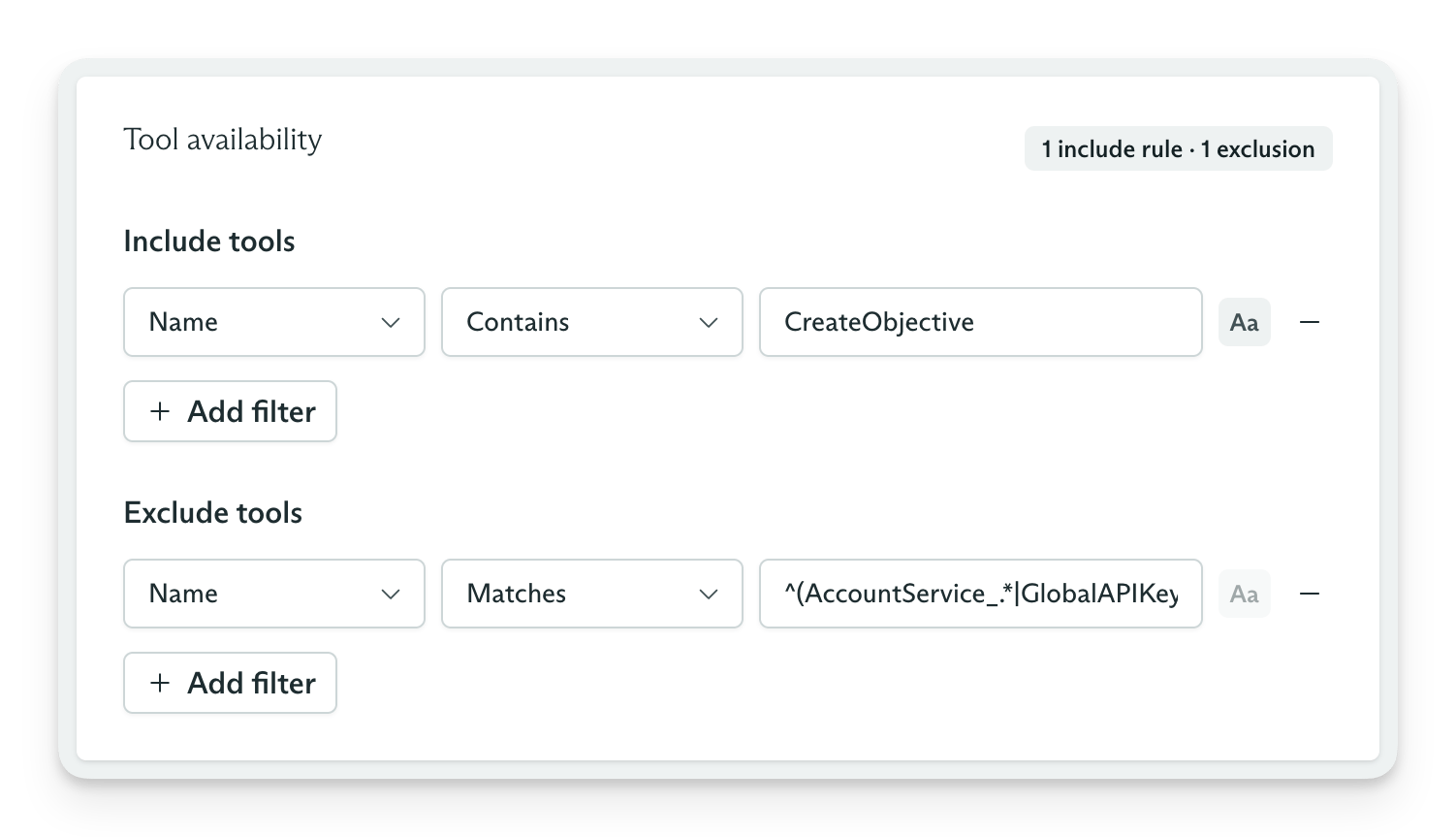
### Include and exclude tools
You can filter tools in an OpenAPI or MCP Tool Set by name, description, and title.
 ### Tool approvals
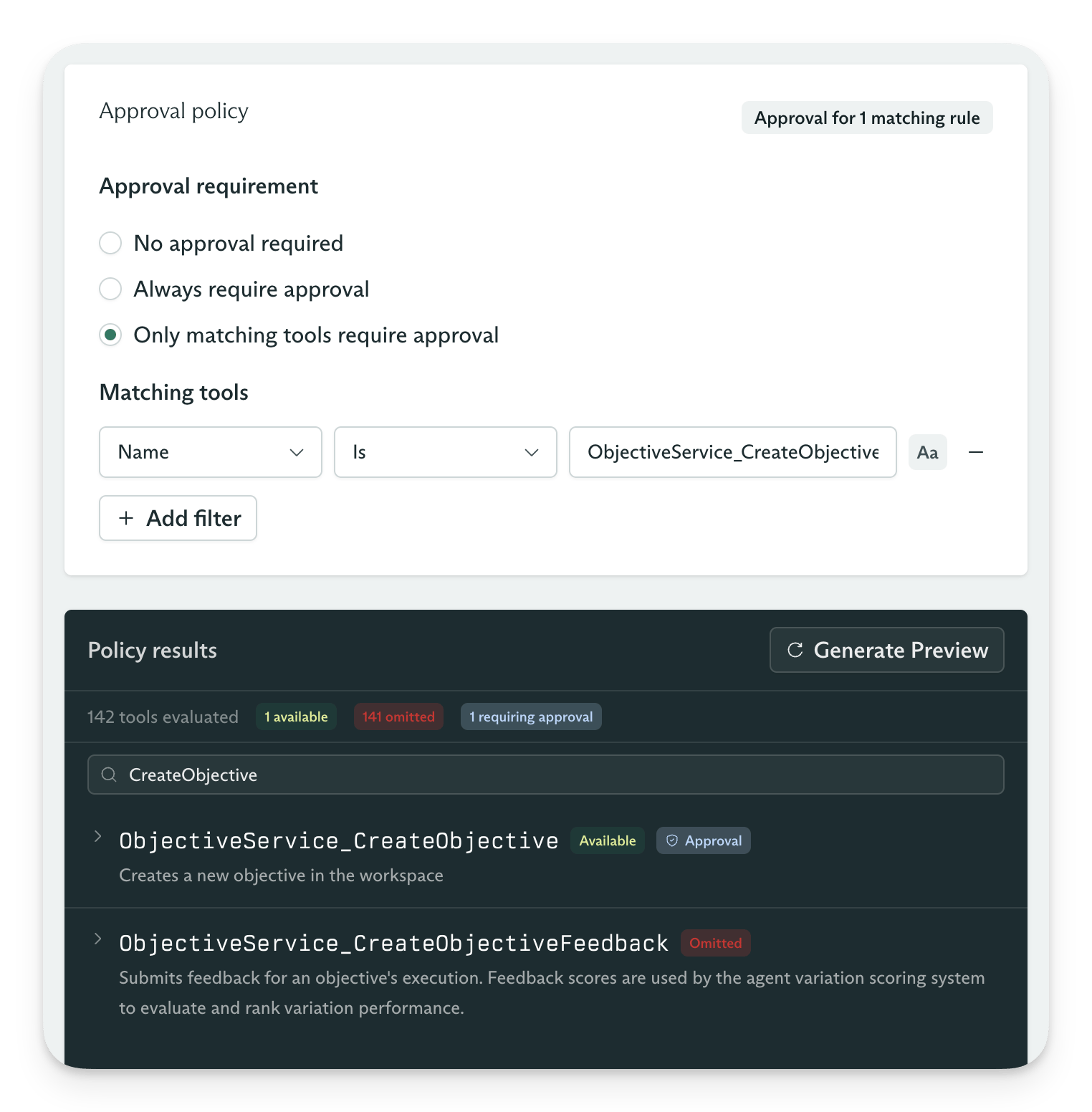
Require approval for every tool call or use filters to require it for matching tools. Combining filters with approvals gives you precise control over how your agent acts in the real world.
### Tool approvals
Require approval for every tool call or use filters to require it for matching tools. Combining filters with approvals gives you precise control over how your agent acts in the real world.
 ## Secrets
### Resolution order
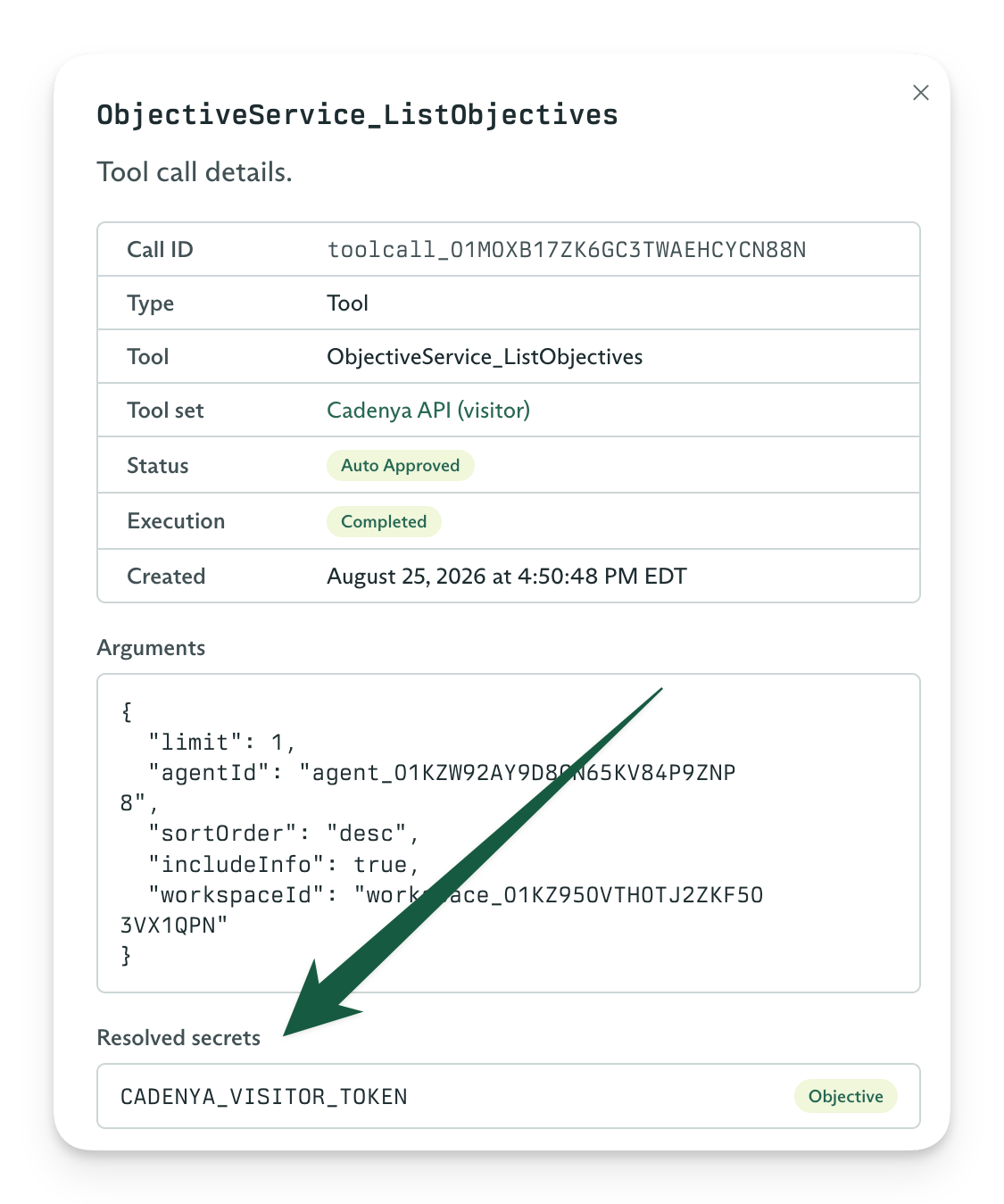
Tool Sets can reference secrets from a workspace, Tool Set, or objective. Cadenya applies matching values in this order:
```
Workspace Secret
|
Tool Set Secret
|
Objective Secret
```
Each more-specific value overrides the preceding value. For example, you can define a secret on a Tool Set and override it for one objective.
### Syntax
```
{{ secrets.MY_SECRET }}
```
## Secrets
### Resolution order
Tool Sets can reference secrets from a workspace, Tool Set, or objective. Cadenya applies matching values in this order:
```
Workspace Secret
|
Tool Set Secret
|
Objective Secret
```
Each more-specific value overrides the preceding value. For example, you can define a secret on a Tool Set and override it for one objective.
### Syntax
```
{{ secrets.MY_SECRET }}
```
 ### Security
Cadenya encrypts every secret at rest with envelope encryption. Each value uses a unique data key, represented by the `iv` and `encrypted_value` pair, so storage never receives the plaintext value. Cadenya scopes secrets to a workspace or Tool Set, decrypts them only at the point of use, and records each access in `last_used_at`.
## OpenAPI Tool Sets
Cadenya can treat an OpenAPI spec as a Tool Set. If you have a public API, you have an agent in waiting. Cadenya can read every operation from a URL or from an uploaded API spec.
### Security
Cadenya encrypts every secret at rest with envelope encryption. Each value uses a unique data key, represented by the `iv` and `encrypted_value` pair, so storage never receives the plaintext value. Cadenya scopes secrets to a workspace or Tool Set, decrypts them only at the point of use, and records each access in `last_used_at`.
## OpenAPI Tool Sets
Cadenya can treat an OpenAPI spec as a Tool Set. If you have a public API, you have an agent in waiting. Cadenya can read every operation from a URL or from an uploaded API spec.
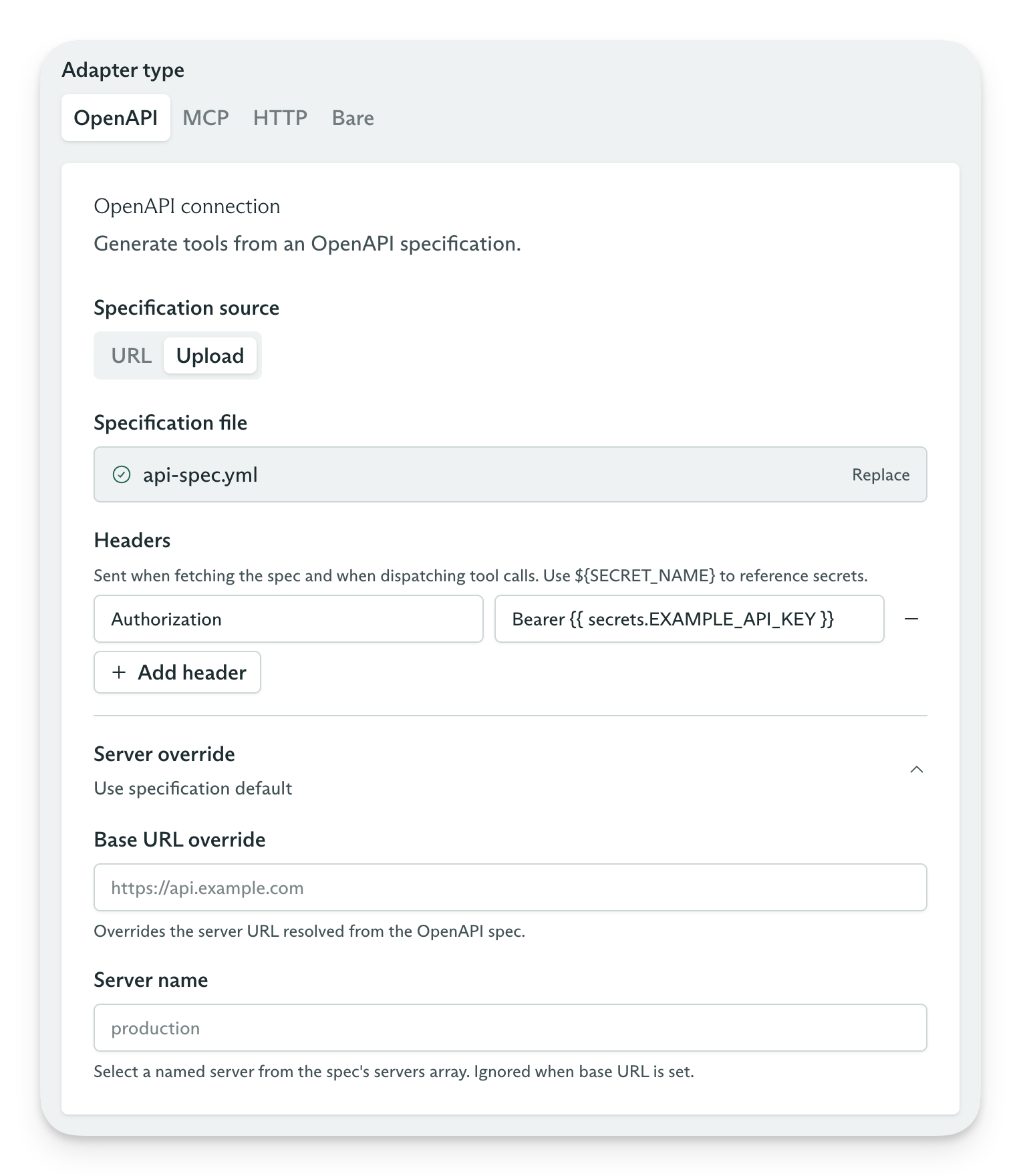 * If you use a URL as the source, Cadenya checks the specification for changes each hour.
* Cadenya converts path parameters and request bodies into tool parameters for your agent.
* Use overlays to remove large request parameters and reduce token use when a tool enters an agent's context window.
## MCP Tool Sets
* If you use a URL as the source, Cadenya checks the specification for changes each hour.
* Cadenya converts path parameters and request bodies into tool parameters for your agent.
* Use overlays to remove large request parameters and reduce token use when a tool enters an agent's context window.
## MCP Tool Sets
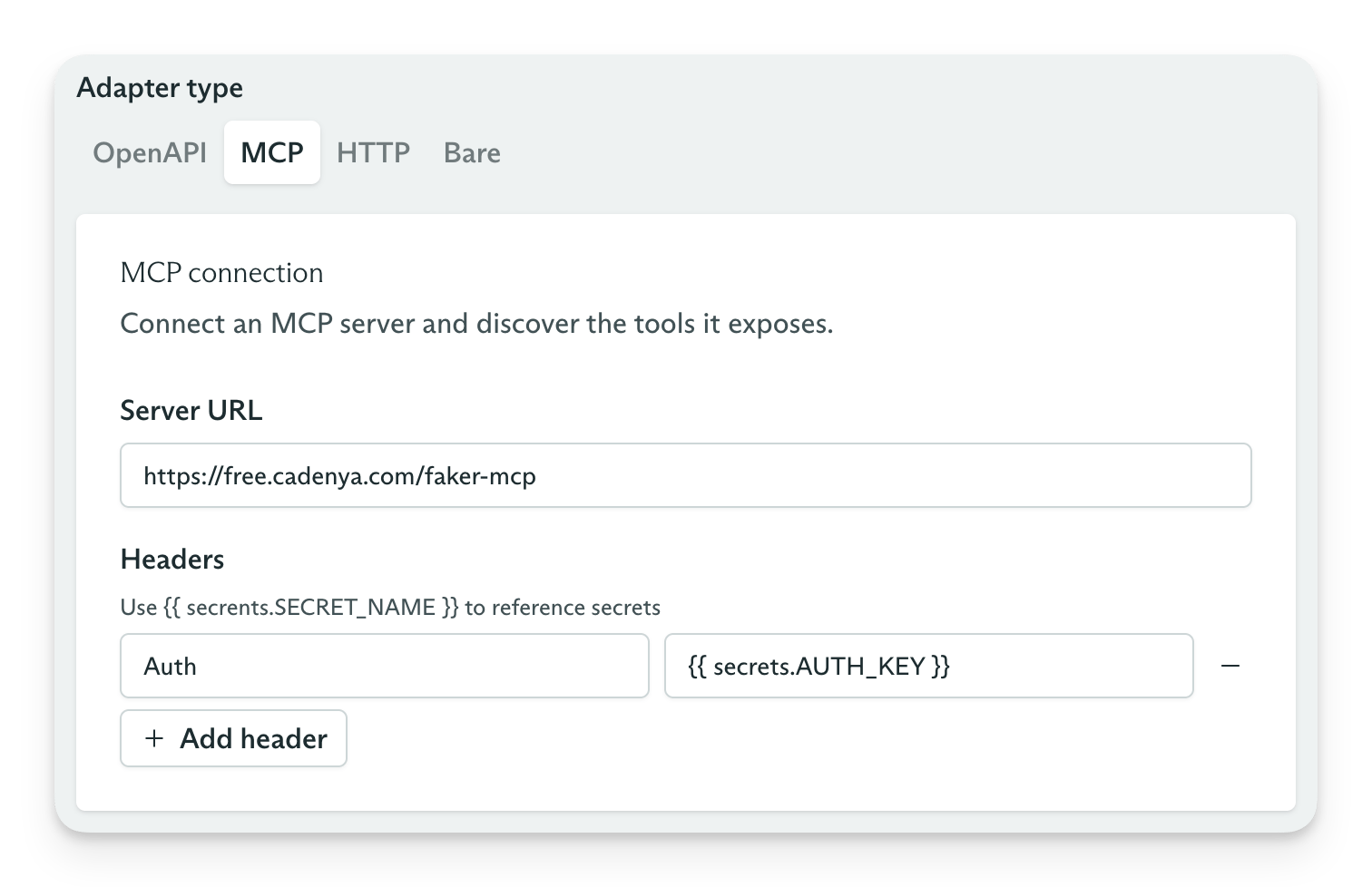 MCP endpoints serve tool-calling agents, and Cadenya supports two ways to load their tools:
1. Interval syncing
2. Just-in-time syncing
Most MCP servers require an API token, though some do not. Cadenya does not act as an authorization server for MCP endpoints. If your server requires OAuth 2.0, you must implement its authentication flow.
### Interval syncing
If your MCP tool definitions seldom change, use interval syncing. Your agents start objectives faster because they do not load tools from the MCP endpoint for each objective. Cadenya caches the tools and their parameters, then checks for changes each hour.
If your MCP endpoint (for example, `https://mcp.example.com/mcp`) requires authentication for a `tools/list` RPC, configure it to accept Cadenya's request. Cadenya includes an `X-Cadenya-Challenge-Token` header in each request for you to verify.
```http theme={null}
POST /mcp HTTP/1.1
Host: mcp.example.com
Content-Type: application/json
Accept: application/json, text/event-stream
Mcp-Protocol-Version: 2026-07-28
Mcp-Session-Id: 1a8f3c9e-5d24-4b71-9f80-2c6ab0e14d33
Mcp-Method: tools/list
X-Cadenya-Challenge-Token: 9f2c1b7ae4d84f0cb3a6e5d21f7c8a40
{"jsonrpc":"2.0","id":2,"method":"tools/list","params":{}}
```
You can find your challenge token in [Account Admin](https://app.cadenya.com/account/apiKeys). Store it in an environment variable so you can compare it with the token in each request.
### Just-in-time syncing
Use just-in-time syncing when your MCP server lists different tools or changes their parameter definitions based on who accesses it. For example, an `admin` permission might expose a different tool list than a `member` permission. Cadenya stores these tools on the Tool Set and gives each one a signature to prevent duplicates.
MCP endpoints serve tool-calling agents, and Cadenya supports two ways to load their tools:
1. Interval syncing
2. Just-in-time syncing
Most MCP servers require an API token, though some do not. Cadenya does not act as an authorization server for MCP endpoints. If your server requires OAuth 2.0, you must implement its authentication flow.
### Interval syncing
If your MCP tool definitions seldom change, use interval syncing. Your agents start objectives faster because they do not load tools from the MCP endpoint for each objective. Cadenya caches the tools and their parameters, then checks for changes each hour.
If your MCP endpoint (for example, `https://mcp.example.com/mcp`) requires authentication for a `tools/list` RPC, configure it to accept Cadenya's request. Cadenya includes an `X-Cadenya-Challenge-Token` header in each request for you to verify.
```http theme={null}
POST /mcp HTTP/1.1
Host: mcp.example.com
Content-Type: application/json
Accept: application/json, text/event-stream
Mcp-Protocol-Version: 2026-07-28
Mcp-Session-Id: 1a8f3c9e-5d24-4b71-9f80-2c6ab0e14d33
Mcp-Method: tools/list
X-Cadenya-Challenge-Token: 9f2c1b7ae4d84f0cb3a6e5d21f7c8a40
{"jsonrpc":"2.0","id":2,"method":"tools/list","params":{}}
```
You can find your challenge token in [Account Admin](https://app.cadenya.com/account/apiKeys). Store it in an environment variable so you can compare it with the token in each request.
### Just-in-time syncing
Use just-in-time syncing when your MCP server lists different tools or changes their parameter definitions based on who accesses it. For example, an `admin` permission might expose a different tool list than a `member` permission. Cadenya stores these tools on the Tool Set and gives each one a signature to prevent duplicates.
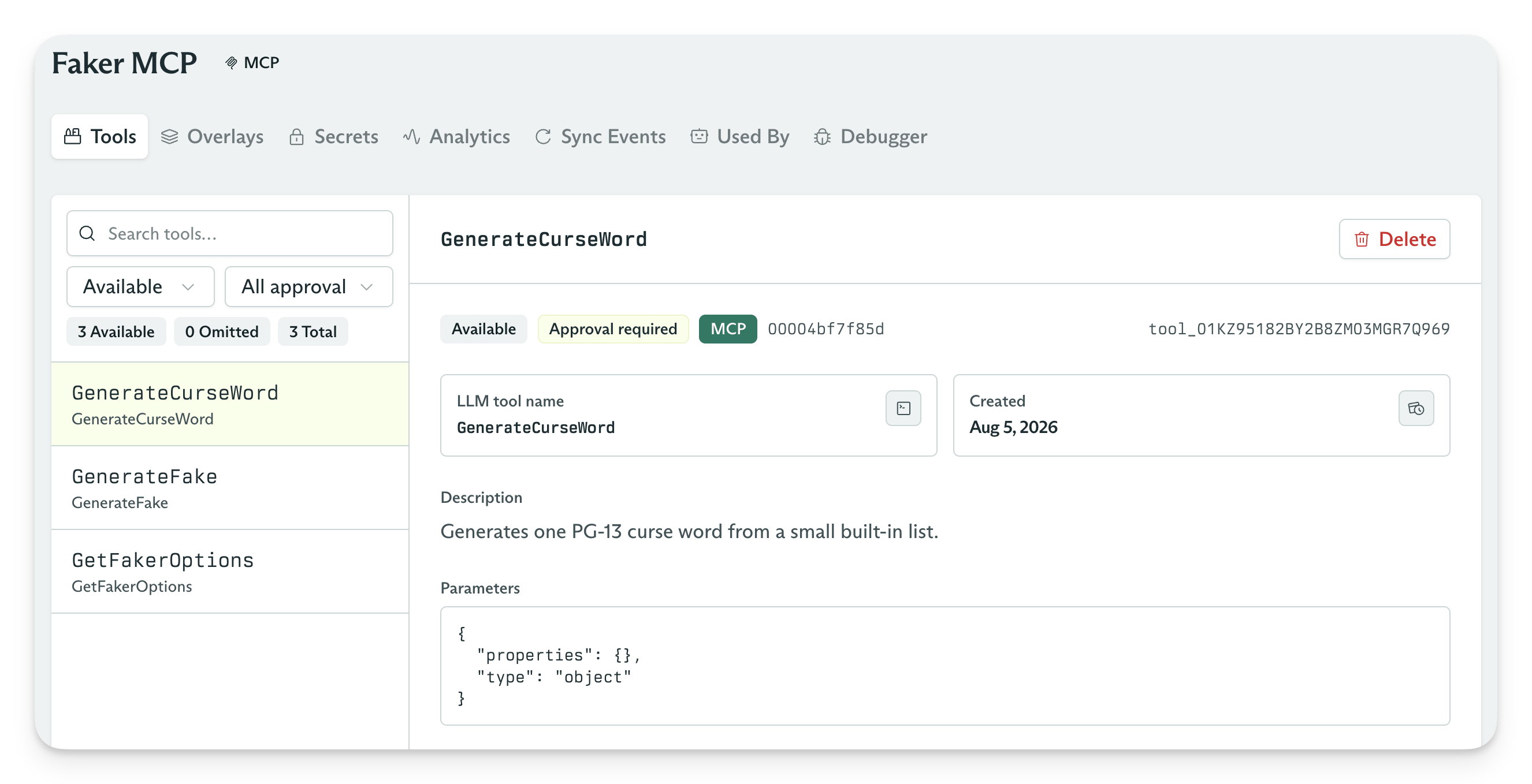 ## HTTP Tool Sets
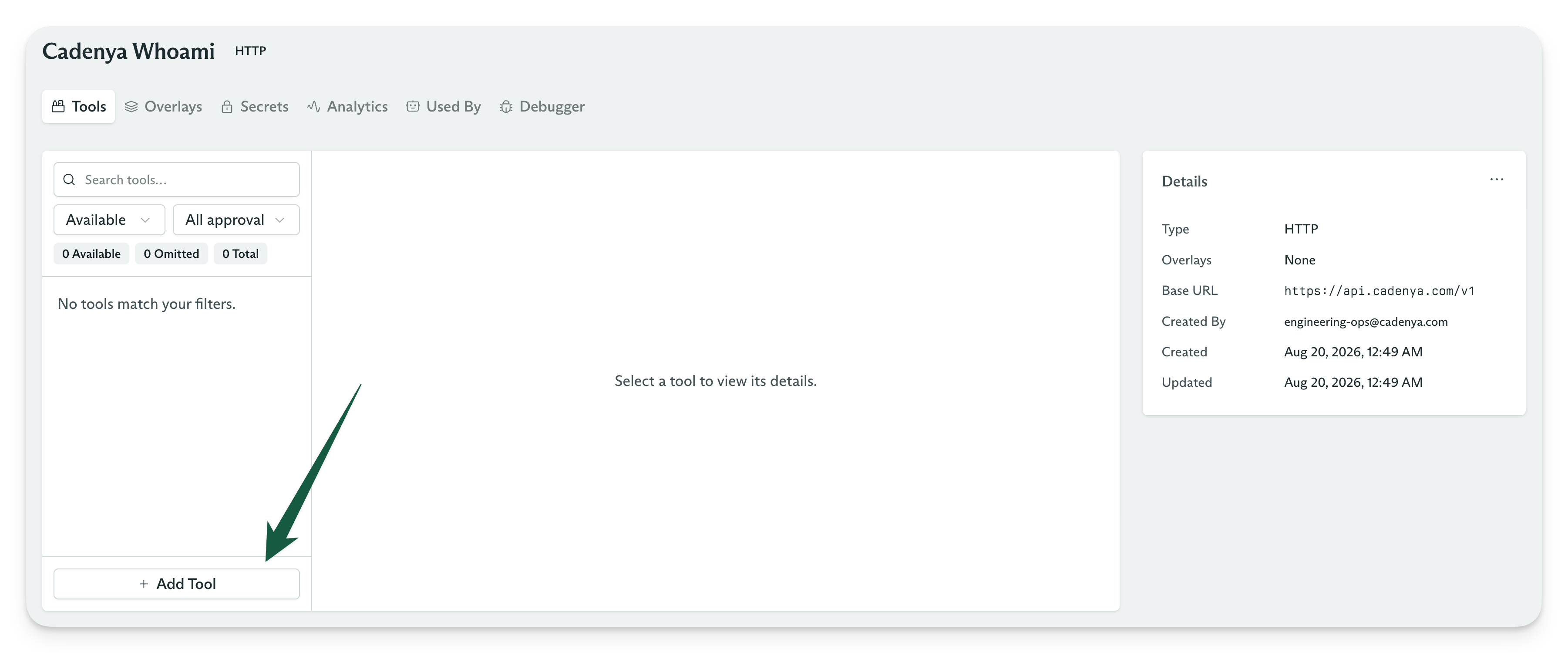
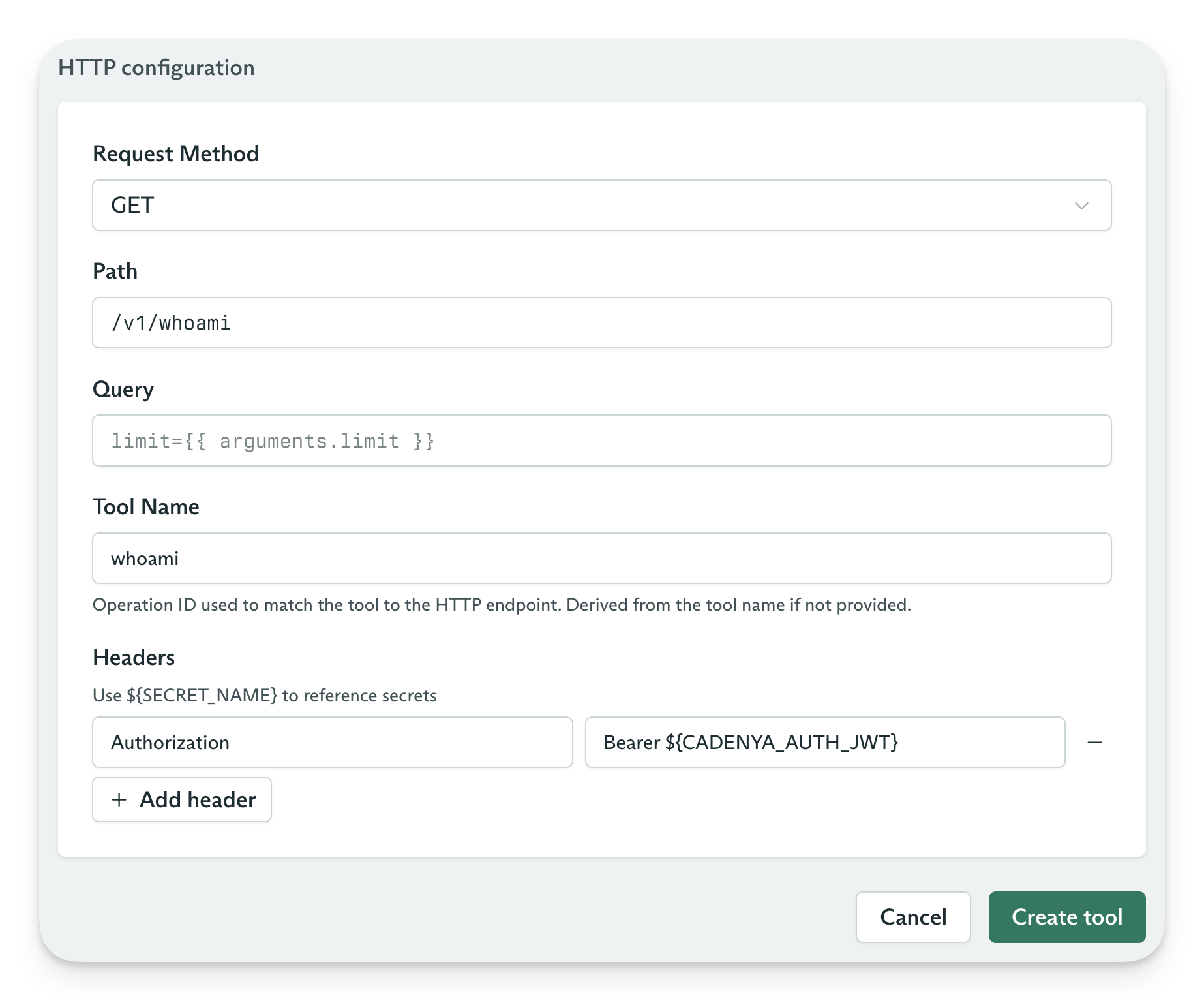
An HTTP Tool Set gives Cadenya a constrained equivalent of a `curl` command. It has two requirements:
1. The HTTP Tool Set must define a base URL. Cadenya does not call arbitrary hosts for you. Use your own tool chain for that.
2. You must add each tool after you create the Tool Set because Cadenya has no source to sync.
## HTTP Tool Sets
An HTTP Tool Set gives Cadenya a constrained equivalent of a `curl` command. It has two requirements:
1. The HTTP Tool Set must define a base URL. Cadenya does not call arbitrary hosts for you. Use your own tool chain for that.
2. You must add each tool after you create the Tool Set because Cadenya has no source to sync.
 ## Bare Tool Sets
### Async results
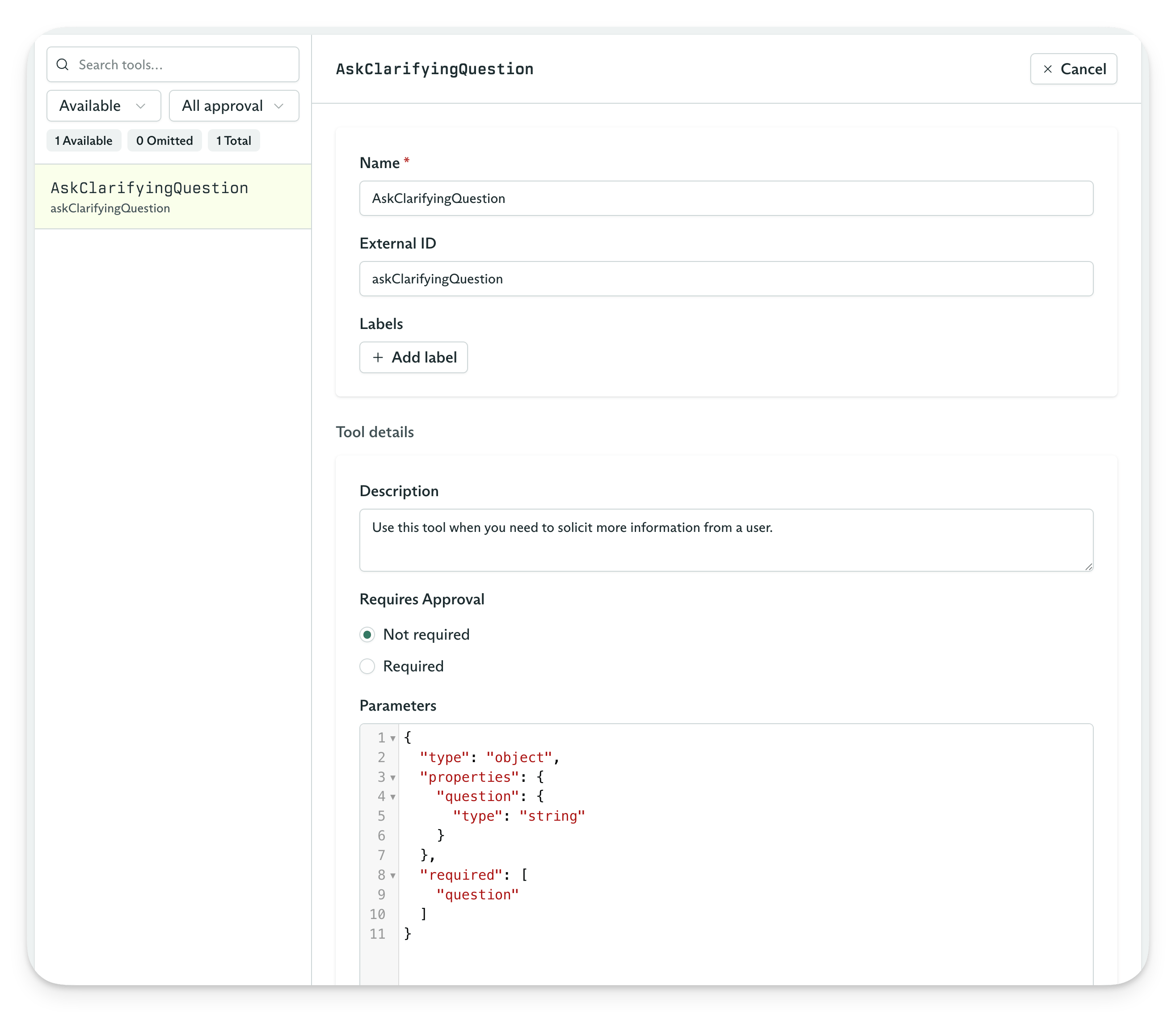
Sometimes an agent needs to call a tool and wait for content from another source. A coding agent that asks, "Which implementation would you prefer?" is one example. Use a Bare Tool Set for this type of human-in-the-loop workflow.
Bare Tool Sets let you [set the content using the Cadenya API](/docs/api-reference/objectiveservice/set-a-bare-tool-calls-content). A flow might look like this:
1. Receive a [`tool_called`](/docs/api-reference/objective-tool-called-event) webhook for a Bare tool.
2. Start your own async process, such as posting a Slack message.
3. Use the [`setContent` API](/docs/api-reference/objectiveservice/set-a-bare-tool-calls-content) after a user submits a result through Slack, email, or another channel.
4. Your agent continues to the next loop.
## Bare Tool Sets
### Async results
Sometimes an agent needs to call a tool and wait for content from another source. A coding agent that asks, "Which implementation would you prefer?" is one example. Use a Bare Tool Set for this type of human-in-the-loop workflow.
Bare Tool Sets let you [set the content using the Cadenya API](/docs/api-reference/objectiveservice/set-a-bare-tool-calls-content). A flow might look like this:
1. Receive a [`tool_called`](/docs/api-reference/objective-tool-called-event) webhook for a Bare tool.
2. Start your own async process, such as posting a Slack message.
3. Use the [`setContent` API](/docs/api-reference/objectiveservice/set-a-bare-tool-calls-content) after a user submits a result through Slack, email, or another channel.
4. Your agent continues to the next loop.
 ### Static results
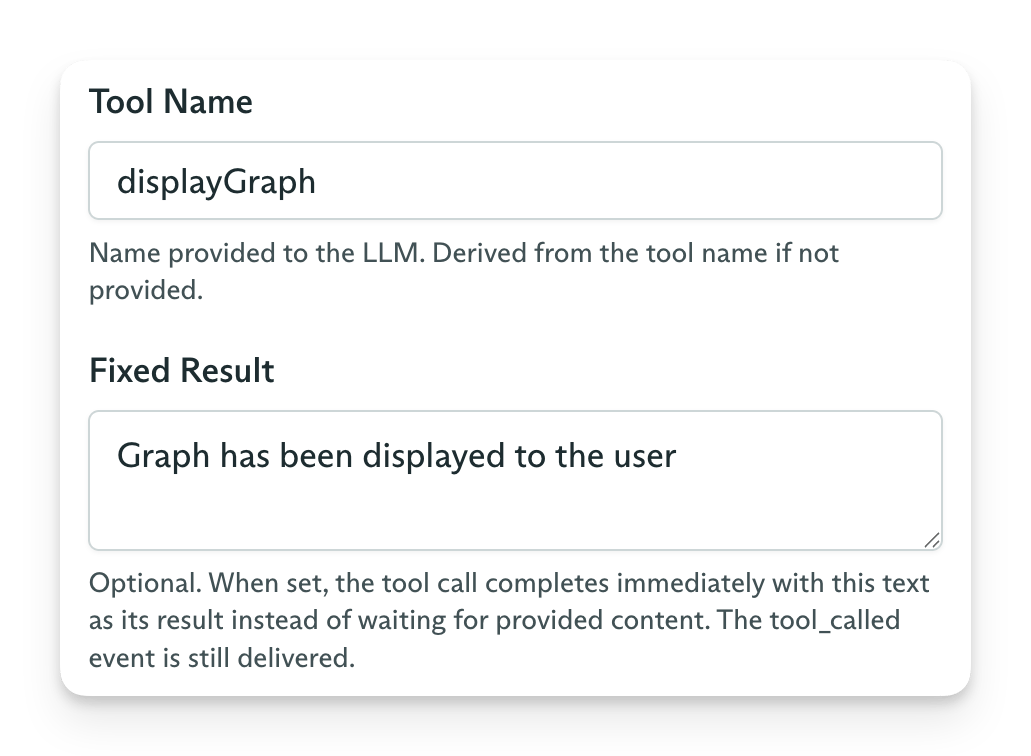
An agentic loop can continue only after every tool call returns a result, including an error. Bare tools also support static content when no outside source provides a result.
A tool can extract data from a conversation without calling an outside service. For example, give your agent a `displayStockChart` tool alongside a Tool Set with stock research tools. Your application can use the model's tool-call arguments to display a component.
### Static results
An agentic loop can continue only after every tool call returns a result, including an error. Bare tools also support static content when no outside source provides a result.
A tool can extract data from a conversation without calling an outside service. For example, give your agent a `displayStockChart` tool alongside a Tool Set with stock research tools. Your application can use the model's tool-call arguments to display a component.
 ## Assign Tool Sets
This page gives you an overview of Tool Sets. To put one to work, assign it to an Agent Variation. [The agents guide](/docs/guides/the-basics/agents) shows you how.
## Assign Tool Sets
This page gives you an overview of Tool Sets. To put one to work, assign it to an Agent Variation. [The agents guide](/docs/guides/the-basics/agents) shows you how.